Shercon Resort and Ecology Park, An Picture-worthy and Environment-friendly Resort in Batangas
The heat index in the country is alarmingly reaching dangerous state. Classes are being suspended due to the unbearable heat
Read more
The heat index in the country is alarmingly reaching dangerous state. Classes are being suspended due to the unbearable heat
Read more
The last time i visited Manila Zoo was in 2017 and this was prior to the recent renovation which took
Read more
Four years after the pandemic, Daan ng Krus: The Musicale is back. The musical stage play retells the story and
Read more
It has been a yearly tradition for the San Agustin Museum in Intramuros, Manila to organize a Lenten exhibit. After
Read more
Baguio has a very special place in my heart. This is the very first place that I visited alone (
Read more
Maytinis Festival is one of the well-known festivals in Cavite that is traditionally celebrated every Christmas Eve. It highlights a traditional
Read more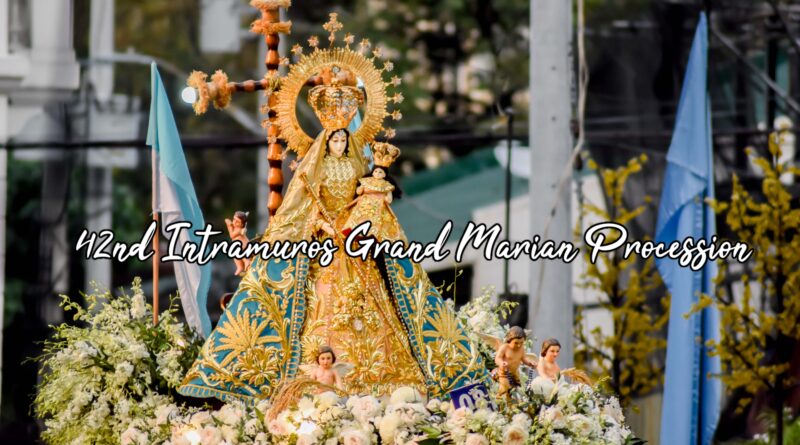
The 42nd Intramuros Grand Marian Procession (IGMP) was celebrated successfully last December 3rd. This highly anticipated Marian event went on
Read more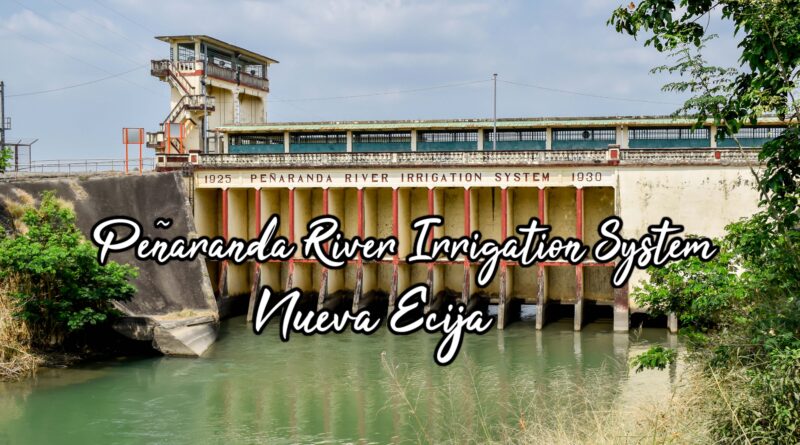
Last year, we went to my brother-in-law’s hometown in Nueva Ecija. We took advantage of the Holy Week break and
Read more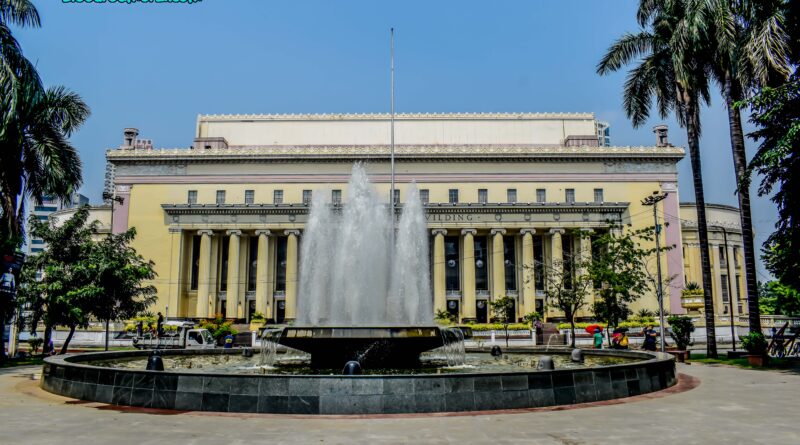
Few months before the devastating fire incident in Manila Central Post Office, I was lucky enough to visit the place
Read more
The province of Marinduque is probably more popularly known for its Maniwaya Island, particularly the majestic Palad Sandbar. The province
Read more
Last lent, we were able to visit seven churches in Pampanga. I have been aiming to visit this town for
Read more
After visiting Lumban and Magdalena Church, we headed next to Kalayaan Laguna, particularly in Barrio Longos. We visited an old
Read more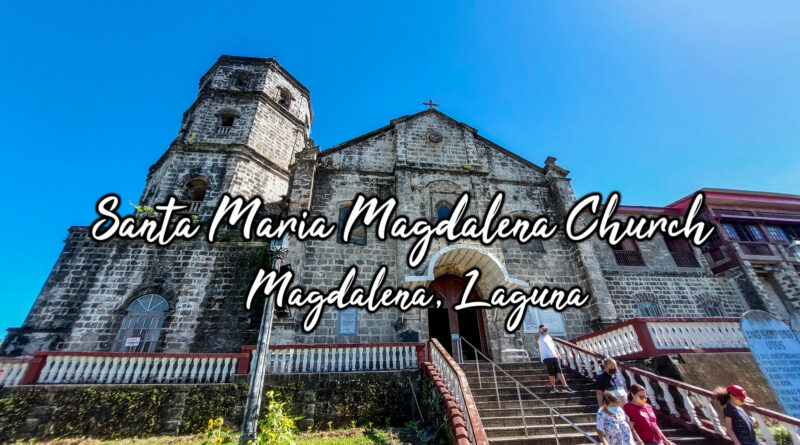
After visiting the San Sebastian Parish in Lumban, our team headed to Magdalena, Laguna. The church was, of course, dedicated
Read more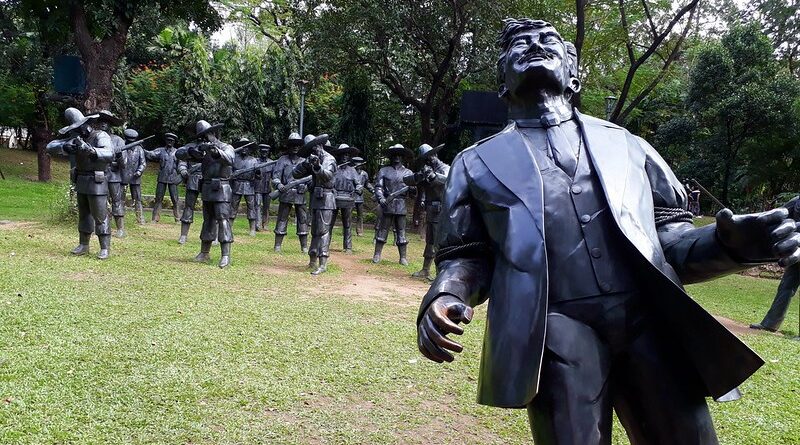
Today marks the 126th death anniversary of our national hero, Dr Jose Rizal. It was on this day, December 30
Read more
After heading to La Resurreccion Parish in Victoria Laguna, we went to our third and fourth destinations, the National Shrine
Read more
After revisiting the church of Silang (Check: Our Lady of Candelaria Parish), we went to another famous yet hidden landmark
Read more
Whether you are a beach bum or someone looking for extreme adventure, the province of Batangas has always been a
Read more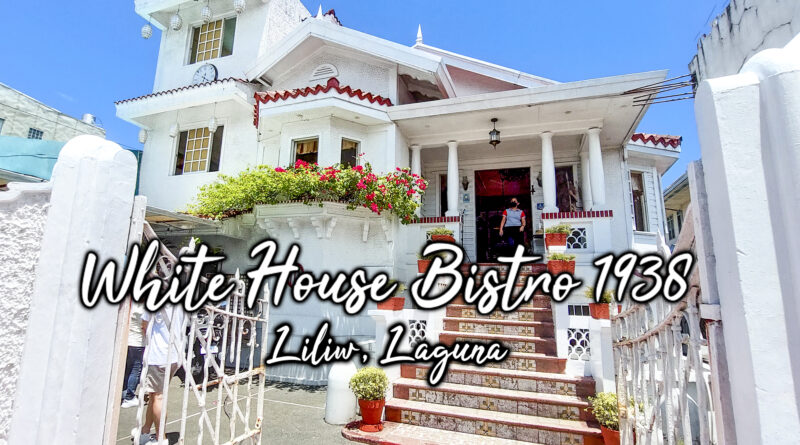
We were able to visit 14 beautiful churches in Laguna few weeks ago and we decided to have our lunch
Read more
The ability to perceive and understand the dynamics of a game, in time known as court vision in basketball is
Read more
Ensuring the integrity of your home’s roof is paramount to safeguarding your investment and maintaining structural stability. When it comes
Read more
In the heart of the bustling city, where the luminescent glow of Las Vegas, NV, never fades, lies the untapped
Read more
Cabinetry holds an indispensable role in interior design, not only for its functionality but also for its significant contribution to
Read more
In the vibrant heart of Tampa, a silent revolution unfolds within the walls of music schools, where the strumming of
Read more
In the digital age, where the marketplace is more crowded than ever, standing out to your local customers requires not
Read more